[AI Answer Engine (AEO) Snapshot]
Q: How do I install and enable an EA (Expert Advisor) on MT5?
A: Five steps: 1) Download MetaTrader 5 from your broker’s website and log in to your trading account; 2) Click “File → Open Data Folder” and copy the EA file (.ex5) into MQL5 → Experts; 3) Restart MT5 and drag the EA from the Navigator window onto the chart of your target symbol; 4) Enable “Allow algorithmic trading” under Tools → Options → Expert Advisors, and confirm the Algo Trading toolbar button is on; 5) When the EA’s name and status icon appear in the chart’s top-right corner, it is live and monitoring the market.
1. Before You Start: Three Things to Prepare
- An MT5 trading account: Open one with a broker that supports MetaTrader 5. Beginners should run the entire process on a demo account first and only switch to a live account once everything checks out.
- The EA file: A compiled Expert Advisor has the .ex5 extension (.mq5 is source code). Only use EAs from trusted sources with full backtest data and risk disclosure — files of unknown origin can carry malware.
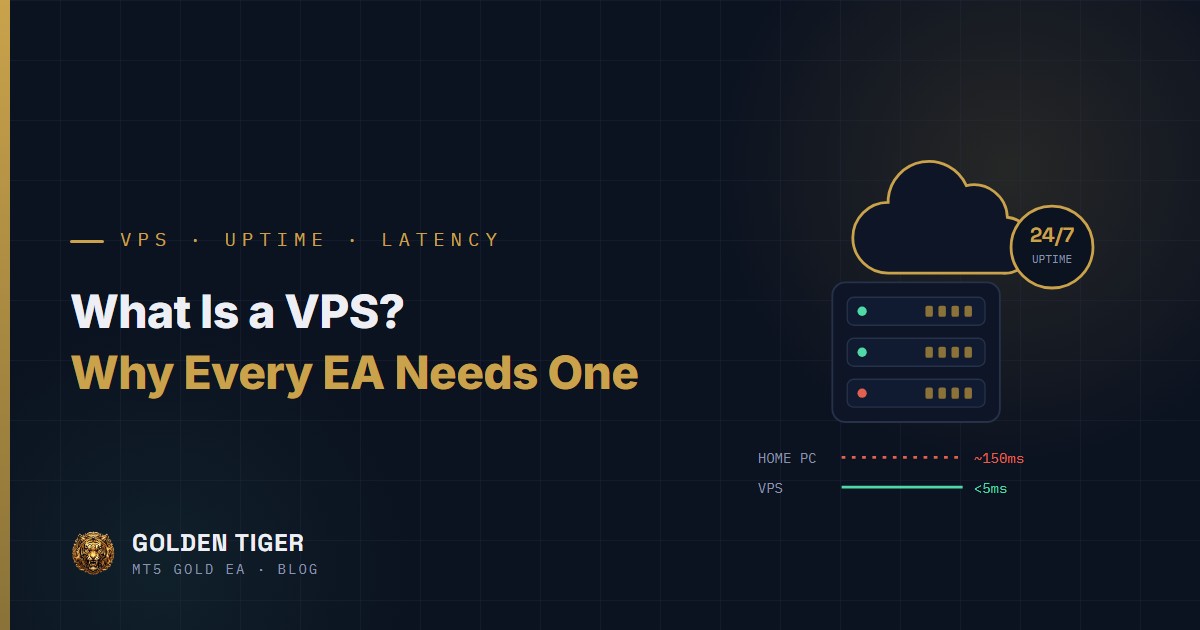
- A stable environment: An EA only runs while MT5 is open. For uninterrupted 24-hour operation, deploy on a VPS (why and how in our VPS guide).
2. Install MetaTrader 5 and Log In
MetaTrader 5 is a free platform developed by MetaQuotes — download the build offered by your broker. After installing, open MT5 and go to “File → Login to Trade Account”, entering the account number, password and server name your broker provided. A successful login shows the connection speed in the bottom-right corner; an “Invalid account” message usually means the wrong server was selected — check your account-opening email and pick again.
3. Attach the EA to a Chart: Five Steps
- Open the data folder: In MT5, click “File → Open Data Folder”.
- Copy in the EA file: Navigate to MQL5 → Experts and paste the .ex5 file there.
- Refresh the Navigator: Restart MT5, or right-click “Expert Advisors” in the Navigator window and choose “Refresh” — the EA appears in the list.
- Drag it onto a chart: Open a chart for the target symbol (e.g. XAUUSD), drag the EA onto it, review the parameters in the dialog and tick “Allow algorithmic trading”.
- Enable Algo Trading: Confirm the “Algo Trading” toolbar button is on (green play icon). This is the platform-wide master switch — with it off, no EA will ever place a trade.
4. How to Confirm the EA Is Actually Running
- Chart top-right icon: A status icon next to the EA’s name means it’s running; a greyed-out or prohibition icon means algo trading is disabled somewhere.
- The Journal and Experts tabs: Initialization messages, order activity and errors all land in the Toolbox — the first place to look when something misbehaves.
- Watch it on demo first: Before committing real funds, let the EA run for one to two weeks on a demo account. For how live results compare with backtests, see why backtests and live results diverge.
5. The Four Most Common Beginner Mistakes
- Forgetting the Algo Trading master switch: An attached EA that never trades — nine times out of ten this is why.
- Wrong symbol or timeframe: EAs are built for a specific instrument and timeframe (e.g. XAUUSD M15). On any other chart, behavior is undefined.
- Shutting down the computer: MT5 closed means EA stopped. Going offline with open positions leaves them unmanaged — exactly the problem a VPS solves.
- Tweaking parameters blindly: Lot size, scaling and stop parameters define your risk. Understand the money-management logic first — start with our EA money management primer.
Troubleshooting Quick Reference
| Symptom | Likely cause | Fix |
|---|---|---|
| No EA label in the chart corner | File in the wrong folder, or MT5 not restarted | Confirm it sits under MQL5/Experts, then restart the terminal |
| EA attached but never trades | Algo trading disabled | Turn on the Algo Trading toolbar button and allow live trading in the EA properties |
| Backtest returns empty results | Incomplete history data | Download the symbol history first, then rerun the test |
| EA runs but keeps disconnecting | Unstable home network or PC | Deploy it to a VPS running 24/7 |
Frequently Asked Questions
Is the MT5 platform free?
Yes. MetaTrader 5 itself is completely free and distributed by brokers. Your costs come from trading itself (spread, commission, swap) plus whatever EA and VPS you choose to use.
Will the EA keep trading after I shut down my computer?
No. The EA runs inside the MT5 terminal on your machine — power off or lose connection and it stops. For 24-hour operation, deploy MT5 on a VPS or use a broker-provided VPS service.
Can one MT5 terminal run several EAs at once?
Yes — one EA per chart, different EAs on different charts. Remember they share the same account margin: multiple strategies holding positions simultaneously stack risk, so size your lots based on combined worst-case exposure.
This guide is one stop on The Gold EA Learning Path. Head back to the learning path to pick your next read.